§ 06 · LDAP / ACTIVE DIRECTORY · ADD FROM DIRECTORY
Add from directory
Find the person in the directory, pick their access, done. It is ready when they first sign in.
Without this feature, a directory user has to sign in once, land on “No workspace found”, and wait for an admin to add them from the waiting card. Add from directory turns that around: an owner searches the company directory, picks the person, sets their role and workspaces, and the person’s access is ready before they ever sign in. At their first sign-in they go straight to their workspace.
This is the recommended way to give access when you know in advance who needs it. The red numbers in the screenshots (markers 23–33) match the numbered rows below. The people shown are from a test directory (corp.hivetest.local).
Who sees it
The Add from directory button is on Organization settings → Members & Teams, nextNext.jsReact framework used by HiveCFM Core. Handles routing, server rendering, and API routes in one bundle. to Invite member. It appears only when all of these are true:
| Condition | Why |
|---|---|
LDAP sign-in is on, and the LDAP_AUTH_DISABLED kill switch is not set | There is no directory to search otherwise. |
| You are an owner of this organization (any organization on the instance) | The search shows names and emails from the whole company directory, so it is limited to owners. Managers do not get the button; they can still add people from the waiting card after their first sign-in. |
| User management is not turned off in the UI | Same rule as Invite member. |
Every search and every Add checks the owner role and the LDAP switch again on the server. Hiding the button is a convenience, not the protection.
Step by step
1 · Open the dialog
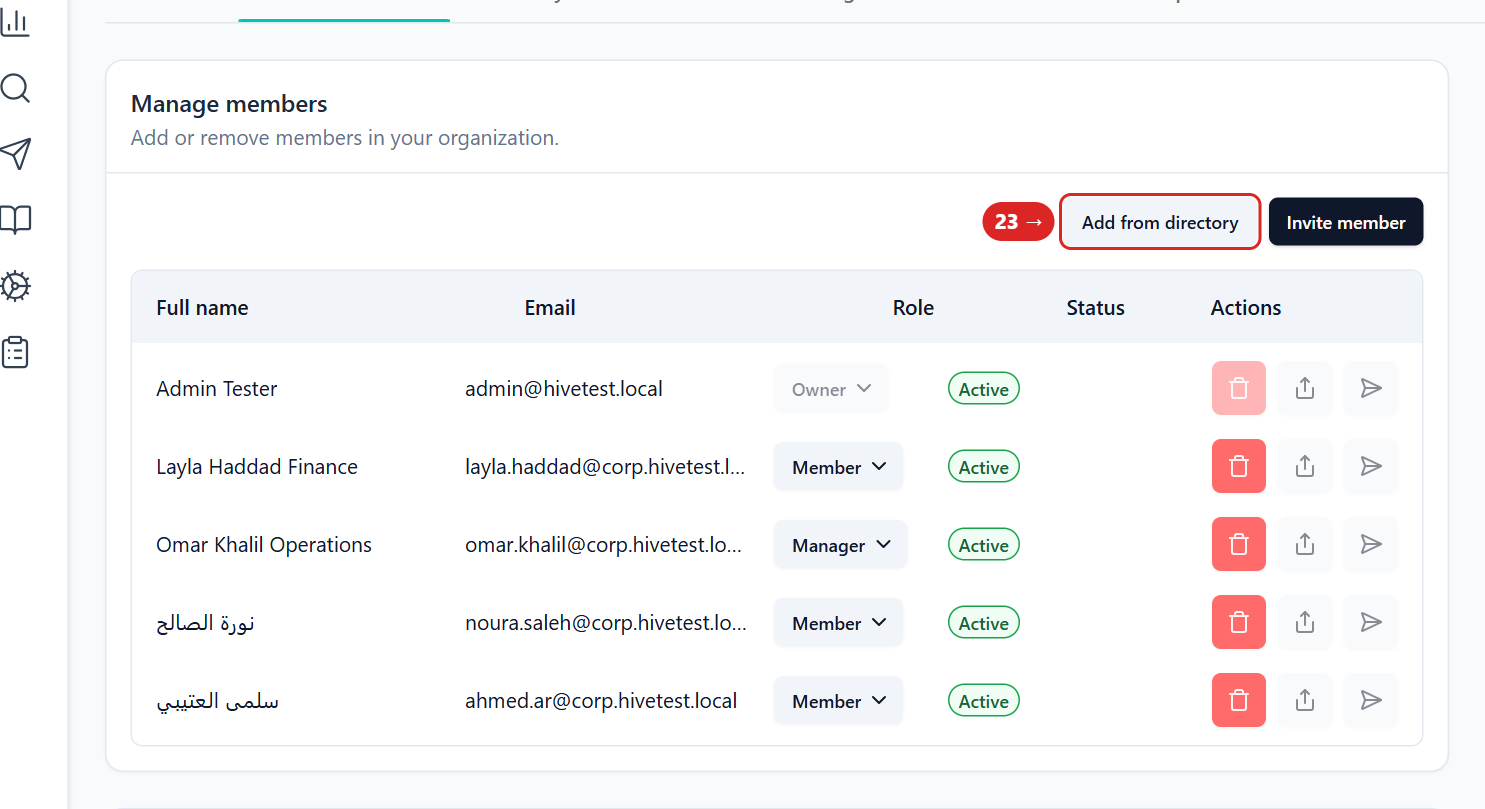
| # | Do this | Why |
|---|---|---|
| 23 | Click Add from directory. | Opens the dialog “Find a person in your company directory and give them access now. They can sign in with their company account right away.” |
2 · Search and pick the person
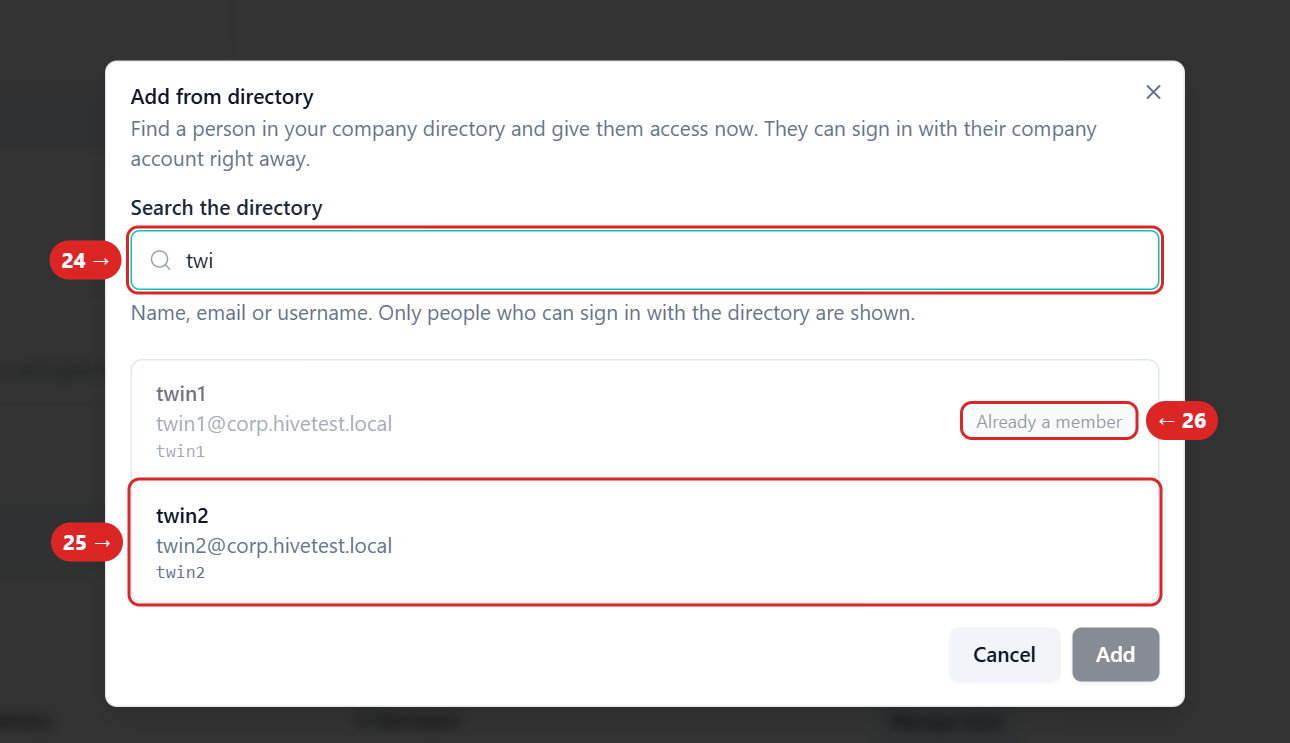
| # | Do this | Why |
|---|---|---|
| 24 | Type in Search the directory: an email, a username or a display name. | The search starts at 3 characters. Usernames (sAMAccountName, uid, UPN) and email match from the start (“twi” finds twin1); the display name matches anywhere in it. |
| 25 | Click the person you want. | Each result shows the name, email and username read from the directory. Only rows without a status pill can be picked. |
| 26 | Read the status pill, if any. | It says why a person cannot be added. See What each status means. |
Good to know about the search:
- Only people who can sign in are shown. The search uses your user filter and Base DN, with the username part opened up to “anyone”. If the filter is limited to an AD group, only that group’s members appear. Someone who could not sign in can never be added.
- Up to 10 results. If more people match, the dialog says “Showing the first 10 matches. Type more to narrow it down.”
- Rate limited: 60 searches and adds together per 5 minutes per owner (one shared limit for both). Over the limit the dialog shows “Maximum number of requests reached. Please try again later.”. The dialog waits until you pause typing before it searches, so normal use stays far below that.
- Safe to type anything. The search text is escaped before it goes into the LDAP filter, so characters like
*,(,)and\cannot change what the filter means. - Directory errors are the same as in the test buttons. If the directory cannot be reached, the certificate is not trusted or the service account is refused, the dialog shows the same plain message as Test connection on the LDAP page.
- Directory entries without an objectGUID (or
entryUUIDon OpenLDAP) are not offered: HiveCFM could not match them at sign-in.
3 · Set their access and add them
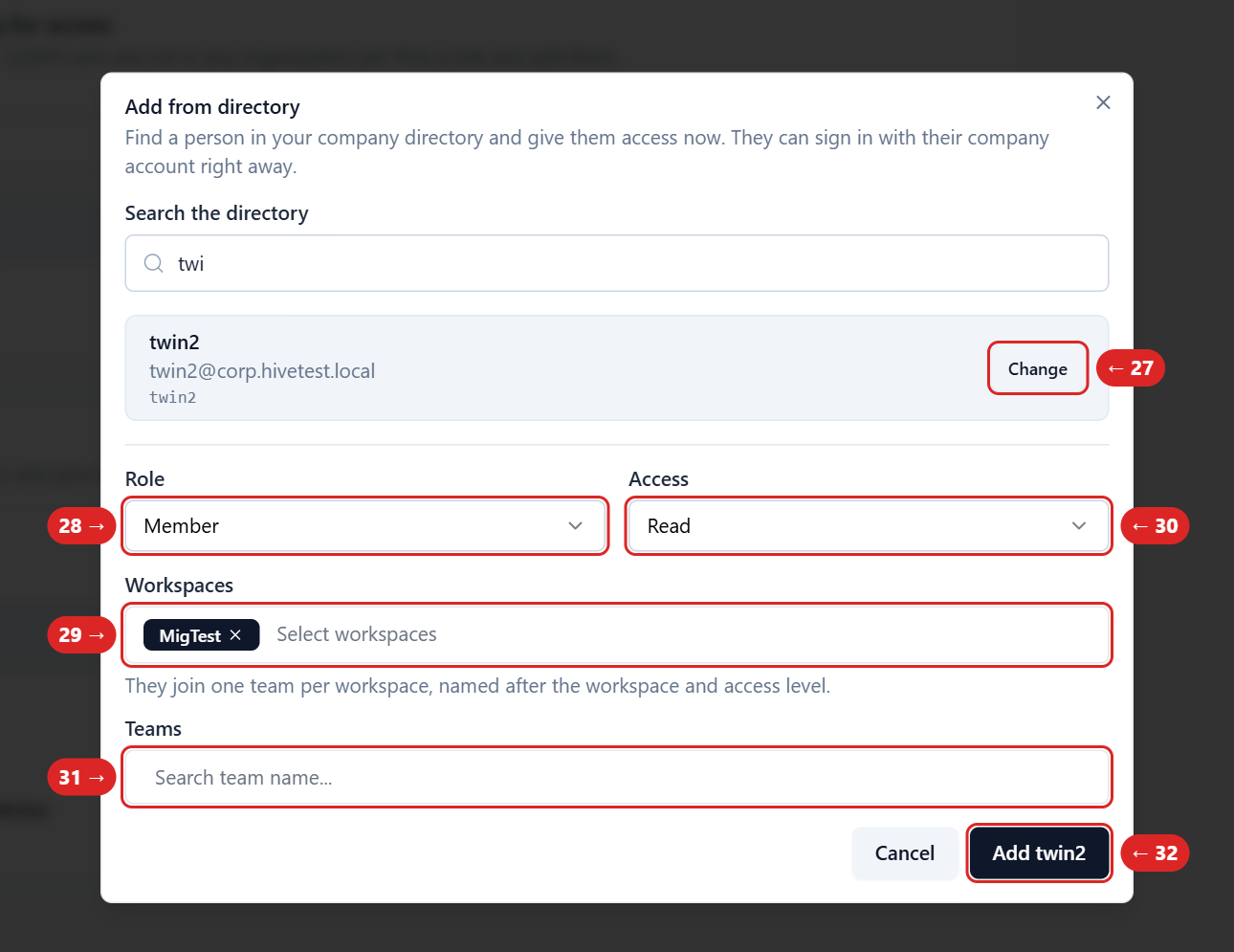
When you pick a person, the result list collapses to one row with that person, and the access fields appear below it.
| # | Field | Why |
|---|---|---|
| 27 | Change | Brings the result list back to pick someone else. |
| 28 | Role | Member or Reporter for normal staff; Manager or Owner if needed. Billing is not offered on self-hosted installs. Without access control (teams and roles) in the plan, the role is fixed to Owner. |
| 29 | Workspaces | The workspace(s) this person needs. They join one team per workspace, named after the workspace and access level. Not used for Owner and Manager: they open every workspace anyway. |
| 30 | Access | Read (default), Read & Write, or Manage, applied to the picked workspaces. |
| 31 | Teams | Optional: existing teams to put the person in as well. |
| 32 | Add <name> | Creates the person and their access in one go. The message “<name> was added. Their access starts at their first sign-in.” confirms it. |
Workspaces, Access and Teams are shown only when the plan includes access control. The workspace teams work exactly like the waiting card’s: a team named <workspace> members (<access>), for example MigTest members (read), is created or reused, and an existing team is never changed. See What Add actually does.
4 · Check the members list
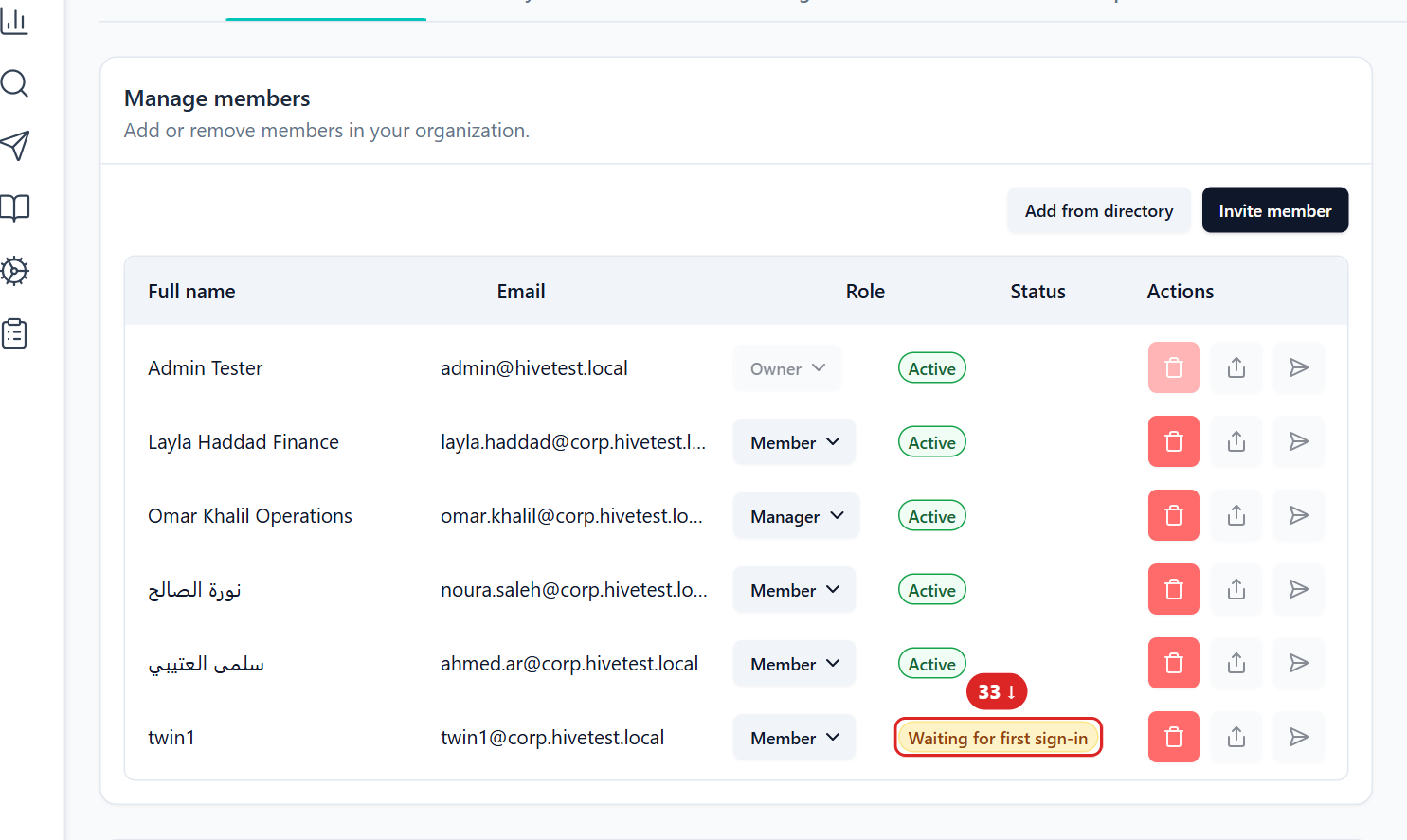
| # | What you see | What it means |
|---|---|---|
| 33 | Waiting for first sign-in (yellow) | The person is in the organization with their role and teams, but has not signed in yet. The tooltip says “Added from the directory. Their access is ready and starts at their first sign-in.” After their first LDAP sign-in the badge changes to the normal Active. |
Tell the person they can sign in now with their company username and password. Nothing else is needed.
What each status means
| Status in the result list | Can be added? | What it means |
|---|---|---|
| (no pill) | Yes | The person can sign in and is not yet in this organization. This includes people who are a member of a different organization on the instance. |
| Already a member | No | The person is already a member of this organization. Change their role or teams in the members list instead. |
| Email belongs to another account | No | A local or single sign-on account already uses this email, or an LDAP account bound to a different directory person does. Their directory sign-in would be refused (LDAP_EMAIL_CONFLICT), so HiveCFM does not add them. |
| Deactivated | No | The person’s HiveCFM account exists but is deactivated. Reactivate it first, if that is intended. |
| No email in directory | No | The directory entry has no valid email in mail (or the configured email attribute), and its UPN is not email-shaped either. Sign-in would fail with LDAP_NO_EMAIL_ATTRIBUTE. |
HiveCFM checks them in that order (no email, then email taken, then deactivated, then already a member). As at sign-in, if mail is empty but the UPN looks like an email address (jane.smith@bank.example), the UPN is used as the email.
What happens behind Add
- The browser sends only the person’s directory id (their objectGUID), plus the role, workspaces, access and teams. Names and emails from the browser are never trusted.
- HiveCFM re-reads the person from the directory by that id, through the same user filter. If they are gone, or no longer match the filter, the add is refused: “This person is no longer in the directory, or no longer matches the sign-in filter.”
- It checks the teams, workspaces, license and seat limit before it writes anything. A refusal here creates nothing.
- It creates the HiveCFM user, marked as an LDAP user (
identityProvider = 'ldap'), bound to the person’s objectGUID, with the email and name from the directory and no password. If an LDAP user for that person already exists (for example someone who signed in before and was removed), that row is reused instead. If the email belongs to another account or the existing account is deactivated, the add is refused here, before anything is created. - It adds the membership and the teams in one transaction, exactly as the waiting card does.
If step 5 fails after step 4 (rare, for example a database error), the new user row stays. The person then shows in Directory users waiting for access as Not signed in yet, and the audit log records both the created user and the refusal. Add them again from the card or from this dialog.
What happens at the first sign-in
- Matched by objectGUID, never by name or email. The directory’s objectGUID never changes for an account and is never reused. A renamed account still matches; a new account that re-uses an old username or email does not take over the prepared access.
- No second approval. The membership and teams are already there, so the person goes straight to their workspace.
- The badge changes from Waiting for first sign-in to Active. A deactivated user shows Inactive, as for any member.
- The password is still checked live against the directory, every time, like any LDAP sign-in. The stored hash is never used to let anyone in.
Removing and re-admitting
| You want to | Do this | What happens |
|---|---|---|
| Take back access before the first sign-in | Remove the person from the members list. | If they have no membership left in any organization, they move to Directory users waiting for access with Not signed in yet. Signing in now gives them “No workspace found”. |
| Take back access after they signed in | Remove them from the members list. | Same, with Last sign-in: <date> in the waiting card. |
| Let them back in | Add them from the waiting card, or search for them again in Add from directory. | A new membership and teams. Their existing LDAP user row is reused. |
| Stop them signing in at all | Disable them in the directory, or deactivate them in HiveCFM. | The directory refuses their password, or HiveCFM refuses an inactive account. A deactivated person shows Deactivated in the search and is not listed as waiting. |
Audit events
When audit logging is enabled, every step is recorded under Audit Logs in the left sidebar (/environments/<id>/audit-logs). Passwords and bind credentials are never written.
| Event (action · target) | When | What it records |
|---|---|---|
searched · ldapDirectory | Every directory search | Who searched, which directory (server and Base DN), the search text, the number of results and whether the list was cut at 10. A refused search records the reason. |
created · membership | Every add from the directory | The directory person (objectGUID, username, email, name), whether a user row was created, the role, teams, workspaces and access level. A refused add records the reason. |
created · user | When the add created a new user row | The new user’s email and name, the directory objectGUID and username, identityProvider = ldap, source = directoryAdd. Written even if the membership step then failed. |
| Existing events | Later changes | Role changes, team and workspace changes, removal from the organization and LDAP setting changes are logged by the same events as for any member. |
Security notes
- Owners only. The search exposes names and emails of the whole directory, so managers and members cannot run it, even by calling the server directly.
- The server trusts only the directory. It accepts just the person’s directory id and re-reads the person from AD before creating anything.
- No filter injection. The search text is escaped before it goes into the LDAP filter, and the attribute names come from the saved settings, never from the request.
- The search uses only the service account, never a person’s password, so it cannot push anyone towards an AD lockout.
- Same takeover rules as sign-in. A directory person is never linked to an existing local or SSO account by email, and an LDAP account bound to one objectGUID is never handed to another.
Add from directory or Invite member?
Do not use Add member to prepare directory users. It creates a local account with the person’s email, and the person’s first directory sign-in is then refused with “An account with this email already exists” (LDAP_EMAIL_CONFLICT). An invite creates no account by itself; it causes the same conflict only if the invitee accepts it through Create account (local sign-up) instead of Sign in to accept. Add from directory is the supported way to pre-approve people while LDAP is on. See Giving users access.
Troubleshooting
| Symptom | Likely cause | What to do |
|---|---|---|
| No “Add from directory” button | You are not an owner of this organization, LDAP sign-in is off, the kill switch is set, or user management is turned off in the UI. | Ask an owner. Check Organization settings → LDAP. Managers can use the waiting card after the person’s first sign-in. |
| The dialog says “Type at least 3 characters to search.” | The search starts at 3 characters. | Type at least 3. |
| A person I know is in AD is not found | They do not match the user filter or are outside the Base DN, so they could not sign in either. Or more than 10 people match. | Type more. Check them with Test user credential on the LDAP page. |
| The search shows a directory error | The directory cannot be reached, the certificate is not trusted, or the service account is refused. | Run Test connection on Organization settings → LDAP and fix the failing step. See Troubleshooting. |
| ”Email belongs to another account” | A local or SSO account already has this email. | Decide which account is right; remove or rename the other one. HiveCFM never merges them. See LDAP_EMAIL_CONFLICT in Troubleshooting. |
| ”No email in directory” | No mail value and no email-shaped UPN. | The customer’s AD team fills in mail. |
| ”Maximum number of requests reached. Please try again later.” | More than 60 searches and adds together in 5 minutes by you (one shared limit). | Wait a few minutes. |
| Add refused: “Team … already exists with different workspace access” | Someone edited that workspace team. | Add the person without that workspace, then add them to the right team on the Teams page. |
| Added person still shows Waiting for first sign-in | They have not signed in yet. | Expected. It changes to Active at their first sign-in. |
| After an error, the person is in the waiting card as Not signed in yet | The user was created, then the membership step failed. | Add them from the waiting card or again from this dialog. |