§ 06 · LDAP / ACTIVE DIRECTORY · ACCESS
Giving users access
Signing in proves who someone is. Being added decides what they can see.
Signing in with LDAP proves who a person is, but gives them no access by itself. Someone in HiveCFM has to decide which organization, role and workspaces each person gets. There are two ways to do that, both on Organization settings → Members & Teams.
Two ways in
| Add from directory (recommended) | Directory users waiting for access | |
|---|---|---|
| When | Before the person’s first sign-in | After the person’s first sign-in |
| Who can use it | Owners | Owners and managers |
| How you find the person | Search the directory by email, username or display name | The person signed in once and landed on “No workspace found”; they are listed in the card |
| What the person sees at first sign-in | Their workspace, straight away | ”No workspace found”, until someone adds them |
| Details | Add from directory | This page, below |
Both set the same things (role, workspaces, access level, teams) and create the same workspace teams. Use Add from directory when you know in advance who needs access: nobody has to sign in first, wait, and come back. Use the waiting card for people who turn up on their own.
Both work only while LDAP sign-in is on. When the LDAP_AUTH_DISABLED=1 kill switch is set, the button and the card are hidden and the server refuses their actions.
Directory users waiting for access
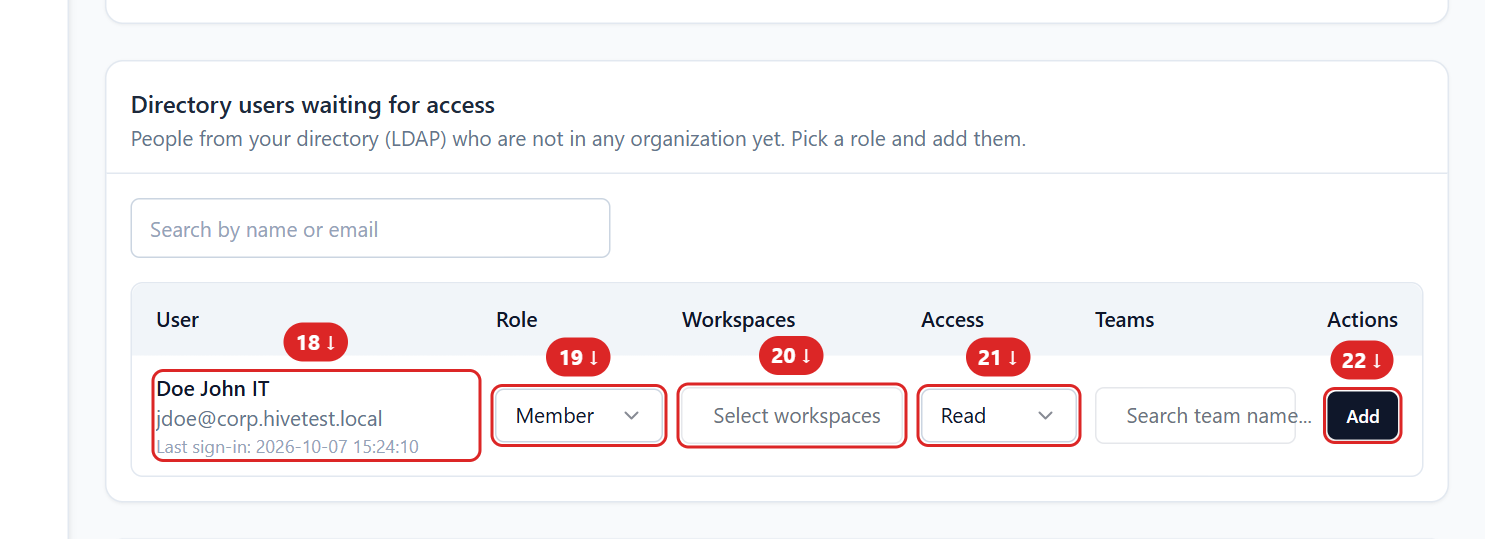
The card’s description reads: “People from your directory (LDAP) who are not in any organization yet. Pick a role and add them.”
Where it is and who sees it
Organization settings → Members & Teams, below the members list. The card appears only when all of these are true:
| Condition | Why |
|---|---|
LDAP sign-in is on (and the LDAP_AUTH_DISABLED kill switch is not set) | Without LDAP there are no directory users to admit. |
| You are an owner or manager of the organization you are looking at (any organization on the instance) | The same people who may add members. Each of them adds people into their own organization. |
| If you are a manager: the plan includes access control (teams and roles) | Without access control the only role that could be picked is Owner, which a manager may not grant, so the card is hidden instead of offering an Add that would always fail. |
The server repeats these checks on every list, search and Add. Hiding the card is a convenience, not the protection.
What “waiting” means
A user is listed as waiting when all three are true:
- They are an LDAP user (
identityProvider = 'ldap'): they signed in through LDAP, or an owner added them from the directory. - Their HiveCFM account is active.
- They have no membership in any organization at all.
The third rule is deliberately strict (“no organization”, not “not in this organization”). A person who already belongs to some organization is not shown, so this card can never be used to pull another tenant’s member across. Because the list is the same for every organization on the instance, the first owner or manager to add a waiting person takes them into their organization, and the person disappears from everyone else’s card.
The card shows the 50 newest waiting users. Use the search box (name or email, any part, case-insensitive) to find others; the search runs on the server.
| # | What you see | What it means |
|---|---|---|
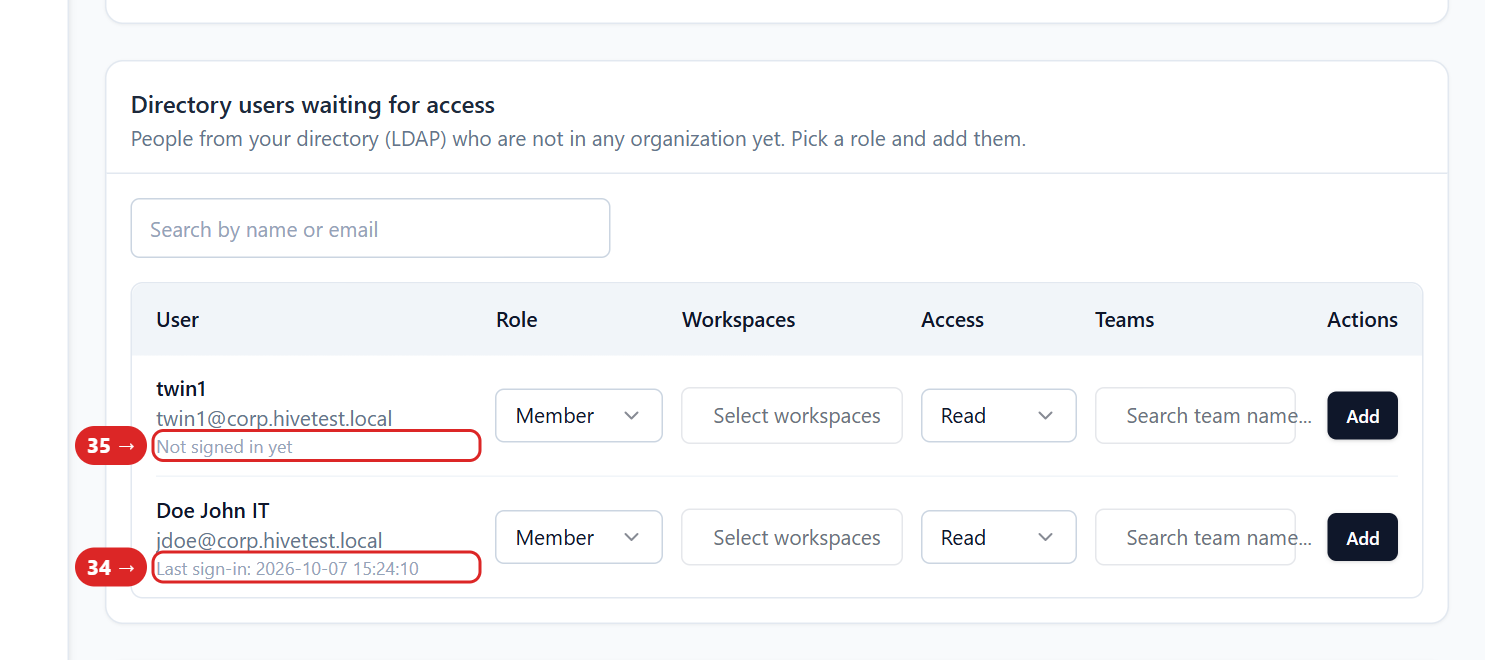
| 34 | Last sign-in: 2026-10-07 15:24:10 | When the person last signed in with LDAP. Someone who signed in and was never added, or who was removed from their organization later, shows this. |
| 35 | Not signed in yet | The person has never signed in. This happens when an owner added them with Add from directory and they were removed again before their first sign-in. |
The row, column by column
| # | Column | What it does |
|---|---|---|
| 18 | User | Name and email from the directory, and Last sign-in or Not signed in yet. |
| 19 | Role | Member or Reporter for anyone; Manager and Owner only if you are an owner. Billing is not offered on self-hosted installs. Without access control the role is fixed to Owner. |
| 20 | Workspaces | Which workspaces (projects) to open for this person. Disabled for Owner and Manager, with the hint “Owners and managers can open every workspace”. Shown only with access control. |
| 21 | Access | The level on the picked workspaces: Read (default), Read & Write, or Manage. Shown only with access control. |
| — | Teams | Optional: existing teams to put the person in, chosen knowingly by you. Shown only with access control. |
| 22 | Add | Does everything below in one go. On success a message says the person now has access, and the row disappears. |
What Add actually does
This section applies to both the waiting card and Add from directory.
In HiveCFM a person reaches a workspace only through a team that has access to it. So when you pick workspaces, Add creates or reuses one team per workspace and access level, named:
<workspace name> members (<access>)For example Sales members (read), Sales members (readWrite) or Support members (manage). You can see these teams on the Teams page.
The first check differs for Add from directory: instead of “still waiting”, HiveCFM re-reads the person from the directory by their objectGUID and refuses if they are already a member of this organization. Everything after it is the same.
The rules in plain words:
- One transaction. The membership, any new workspace teams and the team memberships are written together. If anything is refused, nothing is written.
- Existing teams are never changed. A team with the right name is reused only if it gives access to exactly that one workspace at exactly that level. If someone edited it (added a second workspace, changed the level), Add stops with: “Team “Sales members (read)” already exists with different workspace access. Add this user on the Teams page instead.” This prevents a quiet widening of access for the new person and for everyone already in that team.
- The access level is part of the name, so a reused team can never carry a different level than the one you picked. Read on Sales and Manage on Sales are two separate teams.
- Owners and managers ignore the workspace pickers. They open every workspace anyway, so no workspace team is created.
- Same license and seat rules as an invite. If the license is invalid or the user limit is reached, Add is refused.
- Create only. If the person was added somewhere else a moment ago (another admin, another tab), Add is refused with “This user was already added to an organization.” It never changes an existing membership.
- Audited. Each Add writes an audit entry (“created”, membership) with the role, teams, workspaces and access level. Add from directory also records the directory person and the search; see its audit events.
Why not “Add member” or an invite before the first sign-in?
Add from directory is the supported way to prepare a directory user before they sign in. The normal member tools are not: do not use them for directory users who have never signed in while LDAP is in use.
| Tool | What happens | Result for the person |
|---|---|---|
| Add from directory | Creates an LDAP account bound to the person’s AD objectGUID, with no password, and adds the membership. | Works. Their first directory sign-in lands in their workspace. |
| Members → Add member (create with name, email, password) for someone who has never signed in with LDAP | Creates a local (identityProvider = 'email') account with that email. | Their first directory sign-in is refused with “An account with this email already exists. Contact your administrator.” (LDAP_EMAIL_CONFLICT). |
| Invite, accepted through Create account while LDAP was off | The invitee creates a local account. | Same conflict once LDAP is on. |
| Invite while LDAP is on | Create account leads to a not-found page (sign-up is closed). The invitee must use Sign in to accept with their company account. | Works: they sign in with LDAP and accept. |
| Directory users waiting for access, after their first sign-in | Adds the existing LDAP account. | Works. |
“Add member” is fine after the person’s first LDAP sign-in: by then the account exists and is an LDAP account, so the tool adds a membership to it instead of creating a new user.
The simplest routine: an owner adds the people they already know about with Add from directory. Anyone else who signs in on their own and sees “No workspace found” shows up in the waiting card, ready to add.
Removing access
Removing a directory user from an organization works like for any member (Members & Teams). If they have no membership left in any organization, they are listed in the waiting card again: with Last sign-in if they ever signed in, or Not signed in yet if they were added from the directory and removed before their first sign-in. To let them back in, add them again from the card (or with Add from directory).
To stop a person from signing in at all, disable them in the directory: HiveCFM checks the directory on every sign-in. Deactivating the HiveCFM user also blocks sign-in (“Your account is currently inactive…”), shows them as Inactive in the members list, and such a user is not listed as waiting.