§ 06 · LDAP / ACTIVE DIRECTORY · SETUP
Setup guide
Numbered markers, one page. Fill, test, save.
The red numbers in the screenshots match the numbered rows below. This page uses markers 1–22 and 36–39; markers 23–33 belong to Add from directory and 34–35 to Giving users access. The example values are made up: a company with the Windows domain bank.example, a domain controller dc01.bank.example, and a test person EXAMPLE\jane.smith. Replace them with the customer’s real values.
Before you start
You need all of this before you open the page. Missing one item is the most common reason a setup stalls.
| Item | Example | Where it comes from |
|---|---|---|
| A local HiveCFM owner account | created at /setup on first run | You. It must be an owner of an organization on the instance (any organization). Keep it forever: it is the break-glass account. |
| Domain controller name (or IP) and port | dc01.bank.example, port 636 | Customer AD team. |
| Base DN (where users live) | DC=bank,DC=example | Customer AD team, or build it from the domain: each part of bank.example becomes DC=…. |
| Service account (bind user) | svc-hivecfm@bank.example | Customer AD team. A normal, read-only account whose password does not expire. |
| Service account password | — | Customer AD team. It is stored encrypted and never shown again. |
| CA certificate (PEM) | -----BEGIN CERTIFICATE-----… | Customer PKI team: “the root CA that issued the domain controller certificates, Base-64 .cer”. Not secret. |
| One real test person | EXAMPLE\jane.smith + their password | Someone at the customer who can type their own password during the session. |
| Network path | HiveCFM server → DC on TCP 636 | Customer network team: open the firewall from the HiveCFM host to the DC. |
Open Organization settings → LDAP. Any owner of any organization on the instance can open and change this page. Managers and members do not see it.
1 · Turn it on
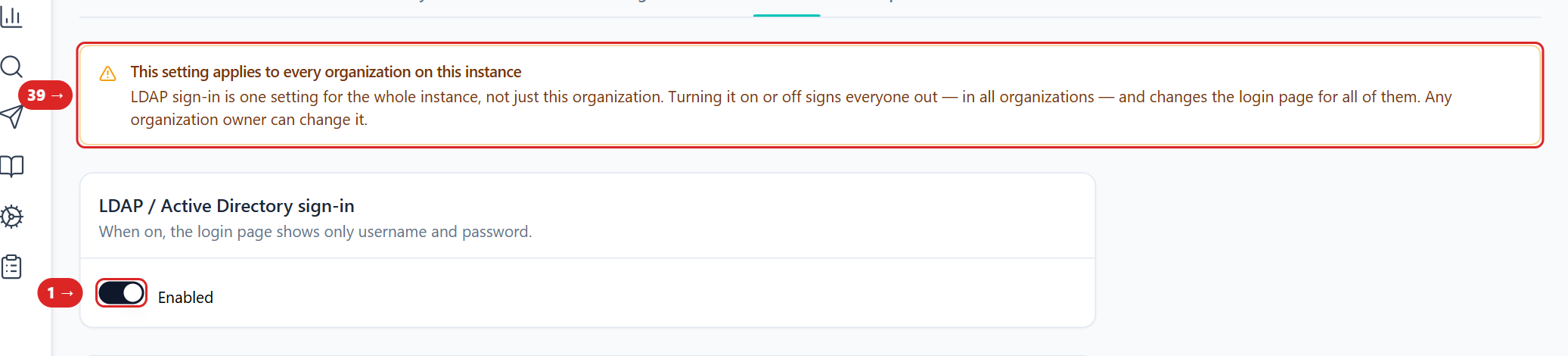
| # | Do this | Why |
|---|---|---|
| 39 | Read the orange warning “This setting applies to every organization on this instance.” | LDAP is one setting for the whole HiveCFM installation. Whatever you save here changes how people sign in to every organization, not just yours. |
| 1 | Switch LDAP / Active Directory sign-in to Enabled. | Nothing happens yet. The switch is just a form field; an “Unsaved change” badge appears. LDAP only turns on when you press Save (marker 17) and the server’s tests pass. |
When you turn the switch on, a note says “Not applied yet. Save is enabled once the connection test and a user test pass for the current settings; Save then runs both again on the server before turning LDAP on.” When you turn it off (LDAP was on), a warning says that saving turns LDAP off and signs everyone out.
2 · Connection
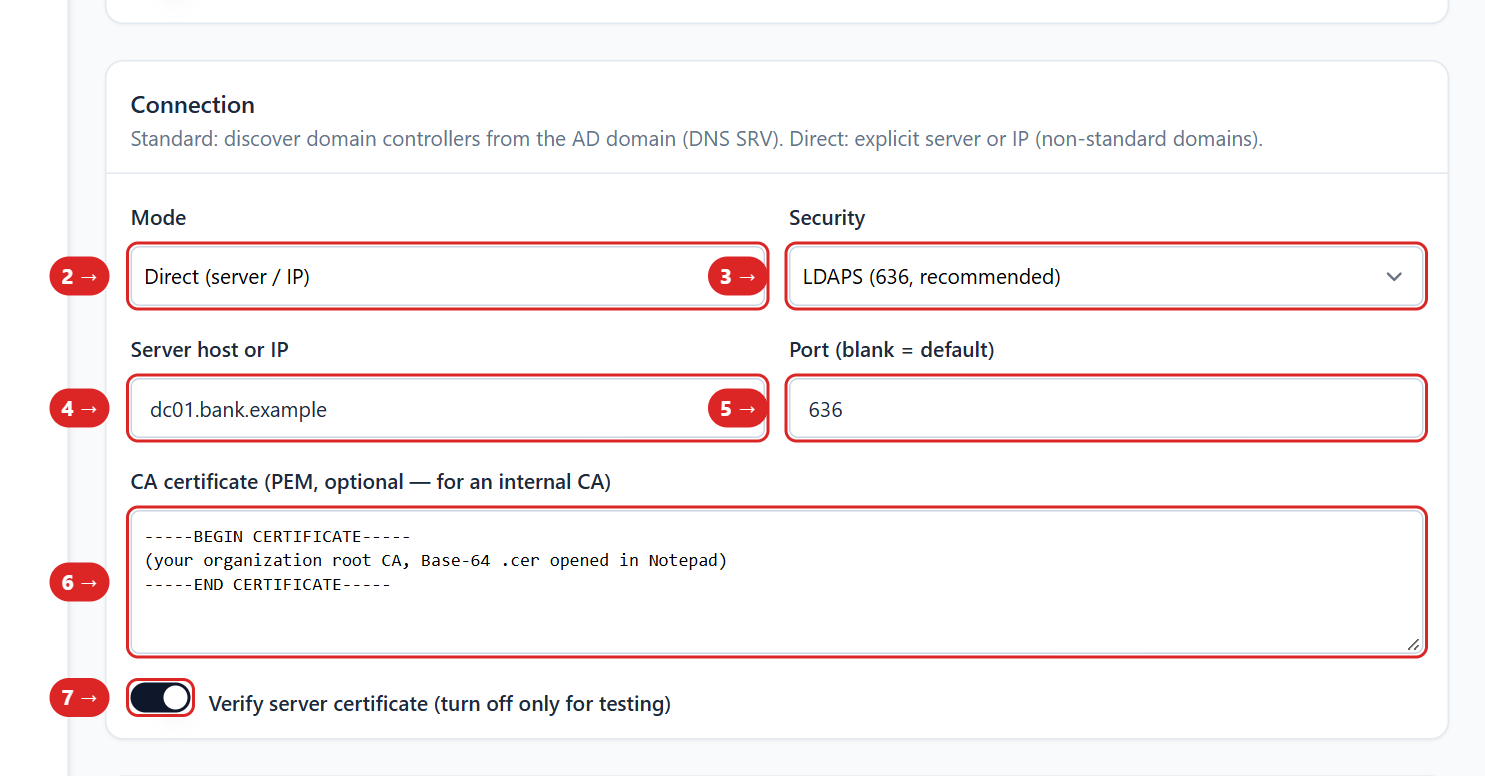
| # | Field | Example | Why |
|---|---|---|---|
| 2 | Mode | Direct (server / IP) | How HiveCFM finds the domain controller. See Standard vs Direct below. Direct is the safe choice for a Linux container. |
| 3 | Security | LDAPS (636, recommended) | Encrypts the connection, so the password never travels in clear text. StartTLS (389) is also encrypted. None (389, password sent in clear) is for lab tests only. |
| 4 | Server host or IP | dc01.bank.example | The domain controller. Prefer the DNS name: the certificate check compares it with the name inside the DC’s certificate. |
| 5 | Port (blank = default) | 636 | Blank means 636 for LDAPS and 389 for StartTLS or None. |
| 6 | CA certificate (PEM, optional — for an internal CA) | the customer root CA, starting -----BEGIN CERTIFICATE----- | Companies sign DC certificates with their own internal CA, which nobody outside trusts by default. Paste it so HiveCFM can trust the DC. If there is an intermediate CA, paste both, one after the other. |
| 7 | Verify server certificate (turn off only for testing) | On | Proves HiveCFM is talking to the real DC, not an impostor. Off keeps encryption but drops that proof. Never leave it off in production. |
Is the certificate in the right format? Open the .cer file in Notepad. If you see -----BEGIN CERTIFICATE-----, copy everything. If you see unreadable characters, it is DER (binary): ask for “Base-64 encoded X.509” instead, or export it again from Windows in that format. The field takes up to 64 KB of text.
Standard vs Direct mode
| Standard (AD domain) | Direct (server / IP) | |
|---|---|---|
| You type | the AD domain, e.g. bank.example | a server name or IP, e.g. dc01.bank.example |
| How the DC is found | HiveCFM asks DNS for the record _ldap._tcp.bank.example (an “SRV record”, which AD publishes for its DCs) | used as typed |
| Several DCs | Yes: up to 3 DCs from DNS, tried in priority order if one cannot be reached | One server |
| Base DN | may stay blank: built from the domain (DC=bank,DC=example) | required |
| Safety rule | DNS answers that point outside bank.example are ignored, so a spoofed DNS answer cannot send passwords elsewhere | — |
| Works when | the HiveCFM server’s DNS can resolve the AD domain | always, as long as the network path is open |
| Typical failure | LDAP_SRV_NOT_FOUND — the server’s DNS does not know the AD domain | LDAP_DNS_NOT_FOUND — the server name does not resolve; use another name or the IP |
In Standard mode there is also an optional Server override field. If you fill it, HiveCFM skips the DNS lookup and uses that server, like Direct mode, but keeps the domain for the Base DN.
A Linux container usually cannot resolve the customer’s AD domain, because it uses the hosting network’s DNS, not the DC’s. Old Windows servers were joined to the domain and could. That is why Direct mode is the normal choice when moving a customer from the old HiveCFM. See Migrating from old HiveCFM.
3 · Directory
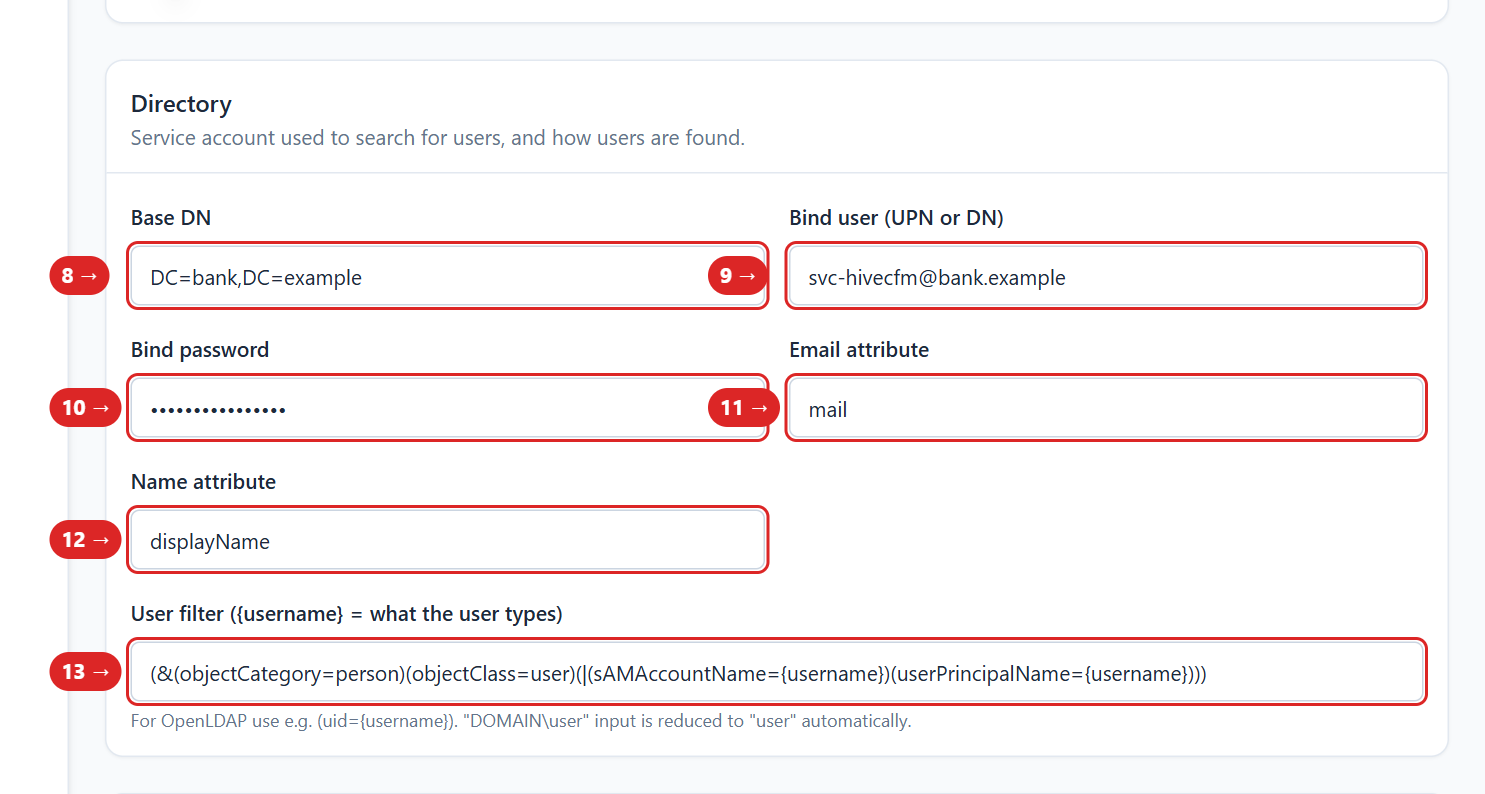
| # | Field | Example | Why |
|---|---|---|---|
| 8 | Base DN | DC=bank,DC=example | Where HiveCFM looks for people. The whole domain is normal. A narrower branch (OU=Staff,DC=bank,DC=example) limits who can be found. |
| 9 | Bind user (UPN or DN) | svc-hivecfm@bank.example | The service account HiveCFM signs in with first, to search for the person. Either the email-style name (UPN) or the full DN works. |
| 10 | Bind password | the service account password | Stored encrypted. Next time the field is empty with the placeholder ”•••••••• (unchanged)”: leaving it blank keeps the stored password. |
| 11 | Email attribute | mail | Which directory field holds the person’s email. Keep the default for AD. |
| 12 | Name attribute | displayName | Which directory field holds the display name. Keep the default for AD. |
| 13 | User filter ({username} = what the user types) | the default (below) | How HiveCFM finds the person who is signing in. Keep the default for every Active Directory customer. |
The default user filter is:
(&(objectCategory=person)(objectClass=user)(|(sAMAccountName={username})(userPrincipalName={username})))Read it as: “a person, who is a user account, whose short Windows login or email-style login equals what they typed.”
| Part | Meaning |
|---|---|
objectCategory=person + objectClass=user | Only real people. Computers, groups and contacts are skipped. |
sAMAccountName={username} | The short Windows login, e.g. jane.smith. |
userPrincipalName={username} | The email-style login, e.g. jane.smith@bank.example. |
{username} | Replaced by what the user typed, after removing any EXAMPLE\ prefix and safely escaping special characters. |
The filter must start with (, end with ) and contain {username}, or the form refuses it. For OpenLDAP and for limiting sign-in to one AD group, see Customising the user filter.
4 · Test
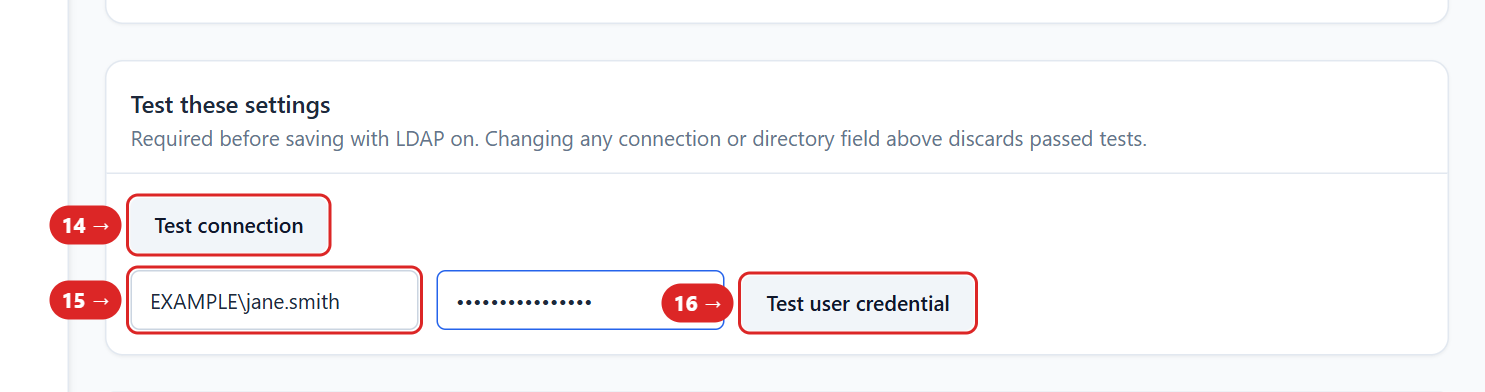
| # | Do this | Why |
|---|---|---|
| 14 | Click Test connection. | Checks, in order: find the server, connect, TLS certificate, service account sign-in, and that the Base DN exists. Every step shows ✓ or ✗ with a plain message and an error code. |
| 15 | Type a real person’s username and password, e.g. EXAMPLE\jane.smith. | The user test needs a real account. Any of the three username formats works. |
| 16 | Click Test user credential. | Runs a full sign-in for that person without creating them in HiveCFM. On success it shows “Credentials valid for …” with the email, name and id read from the directory. |
Good to know about the tests:
- They never create users. The test only checks. The person is created the first time they really sign in.
- They use the values on screen, not the saved ones. You can test before saving anything.
- They are rate limited: 20 test runs per 15 minutes per admin. Wrong passwords in the user test also count against the person’s AD lockout, so do not hammer it.
- The step log is detailed on purpose. It shows the real reason (for example “The directory account is disabled (AD data 533)”), while the public login page shows a vaguer message. See Troubleshooting.
5 · Save

| # | Do this | Why |
|---|---|---|
| 17 | Click Save, then confirm. | It stays grey until the checklist nextNext.jsReact framework used by HiveCFM Core. Handles routing, server rendering, and API routes in one bundle. to it is all ✓. When it is grey, the line below the checklist tells you what is missing. When you click it, a confirmation asks “Save LDAP settings for all organizations?”. Click Save for all organizations to go ahead, or cancel to change nothing. |
The Save gate
| Check | Needed when the switch is on | Needed when the switch is off |
|---|---|---|
| Required fields — every field valid | Yes | Yes |
| Connection test — passed for exactly the values on screen | Yes | No (shown as ”–“) |
| User test — passed for exactly these values and this username, with username and password still filled in | Yes | No |
Rules that surprise people:
- Change any connection or directory field and both tests are discarded. You must test again. The Enable switch itself does not discard tests.
- Saving while LDAP is already on also needs both tests, even for a small change like the name attribute. This stops a typo from locking everyone out.
- Save always asks first. Because the setting covers every organization, Save opens “Save LDAP settings for all organizations?”. Nothing is written until you click Save for all organizations.
- The server tests again. The browser checklist is only a convenience. On Save with the switch on, the server runs the connection test and signs the test user in again with exactly the submitted values. If either fails, it saves nothing and shows “Not saved — …”.
- Turning LDAP off needs no test. That is deliberate: you must be able to switch it off while the directory is down.
- Two admins at once. If someone else saved between your test and your Save, you get “Settings changed while testing (another admin saved); review and save again.” and nothing is written.
Everyone is signed out after Save when the switch changes state (off → on, or on → off). That includes you. Re-saving with the switch unchanged signs nobody out. Plan the switch-over with the customer.
Right after enabling
- Your browser is signed out and sent to the login page with the notice “LDAP sign-in is now on. Sign in with your company account. Administrators: use Administrator sign-in below.”
- The page shows the company-account form (markers 36–37).
- You, the admin, click Administrator sign-in (marker 38) and sign in with your local HiveCFM email and password.
- Any other browser that was signed in is signed out on its next page load.
After disabling, the notice reads “LDAP sign-in was disabled. Please sign in again.” and the normal email login is back.
6 · Give users access
There are two ways in, both on Organization settings → Members & Teams:
- Before they sign in (recommended): Add from directory. An owner searches the directory, picks the person and sets their role and workspaces. Their access is ready at their first sign-in. See Add from directory.
- After they sign in: Directory users waiting for access. Each person signs in once with their company account. HiveCFM creates them, and they see “No workspace found — Please contact your administrator to get access to a workspace.” Then an owner or manager adds them from the card below.
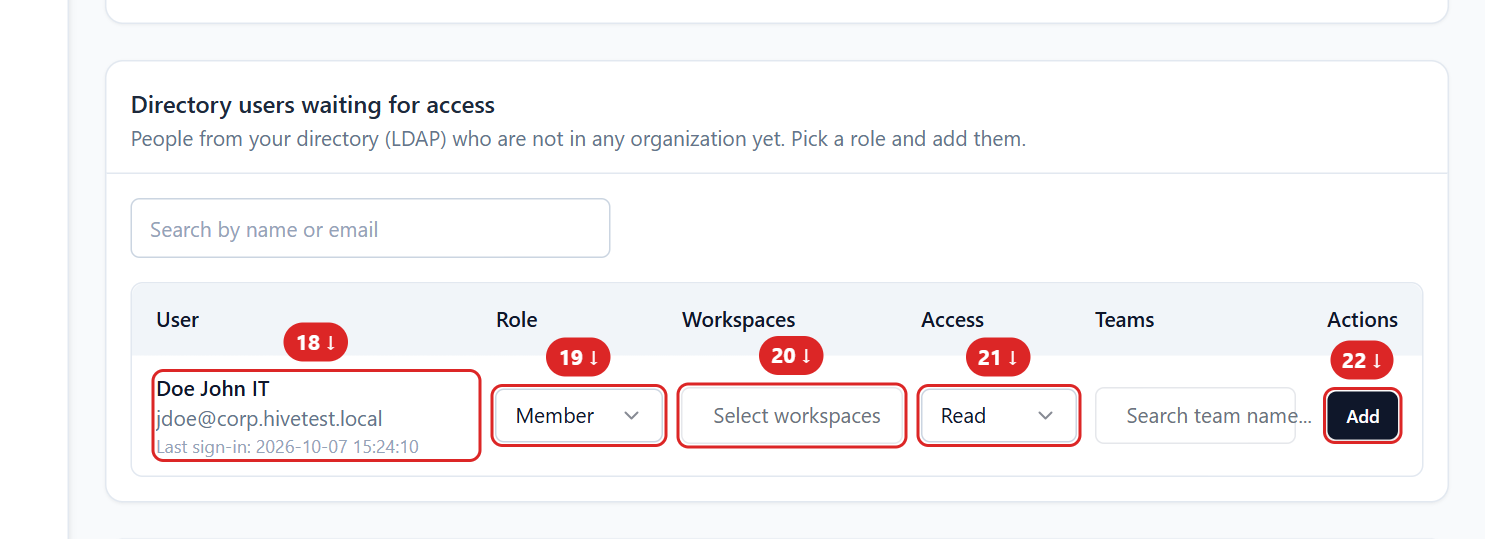
| # | Field | Why |
|---|---|---|
| 18 | The waiting person | Name and email from the directory, and Last sign-in (or Not signed in yet for someone added from the directory and removed again before they signed in). |
| 19 | Role | Member for normal staff. Owner and Manager can open every workspace anyway. |
| 20 | Workspaces | The workspace(s) this person needs. |
| 21 | Access | Read (default), Read & Write, or Manage, applied to the picked workspaces. |
| 22 | Add | Creates the membership and opens the workspaces. The row disappears. |
Behind the scenes, Add puts the person in a team named after the workspace and access level, such as Sales members (read), which you can see on the Teams page. The full rules are in Giving users access.
7 · How users sign in
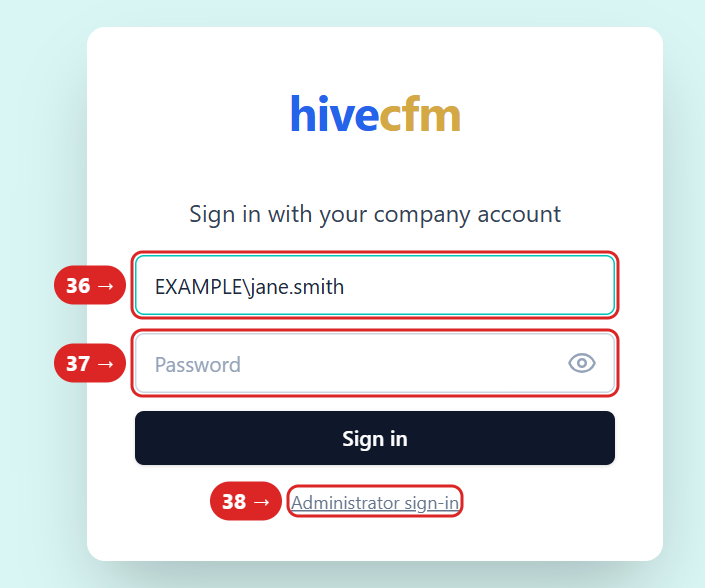
| # | Field | Why |
|---|---|---|
| 36 | Username | jane.smith, EXAMPLE\jane.smith or jane.smith@bank.example all work. The EXAMPLE\ part is removed automatically. |
| 37 | Password | Their company (Windows) password, checked live against the directory every time. |
| 38 | Administrator sign-in | Opens the local email + password form (/auth/login?mode=local). Only owners (of any organization) with a local HiveCFM password are let in there. Use it if the directory is down or LDAP is misconfigured. |
Local admins sometimes type their email into the company form. That fails with “Invalid username or password.” because the directory has no such person. Use Administrator sign-in instead.
Checklist to hand over
- Test connection ✓ and Test user credential ✓ with a real person.
- Saved with the switch on; the “LDAP sign-in enabled” message appeared.
- The admin got back in through Administrator sign-in.
- A real person was added (with Add from directory, or from the waiting card after their first sign-in) and then opened their workspace.
- The customer knows that a person who is not added sees “No workspace found”, and who to ask.
- The local owner account’s password is stored safely by the customer.